
@mcp-b/chrome-devtools-mcp to connect desktop AI agents to a live Chrome browser. The server gives your agent 27 browser automation tools plus the ability to discover and call WebMCP tools registered on any page.
Install the MCP server
Add the server to your MCP client configuration:Test the connection
Enter this prompt in your MCP client:Discover WebMCP tools on a page
When a webpage has@mcp-b/global installed, the server detects its tools through the Chrome DevTools Protocol. Ask your agent:
list_webmcp_tools to discover tools, then registers them as first-class MCP tools with prefixed names like webmcp_webmcp_sh_page0_tool_name. You can call them directly.
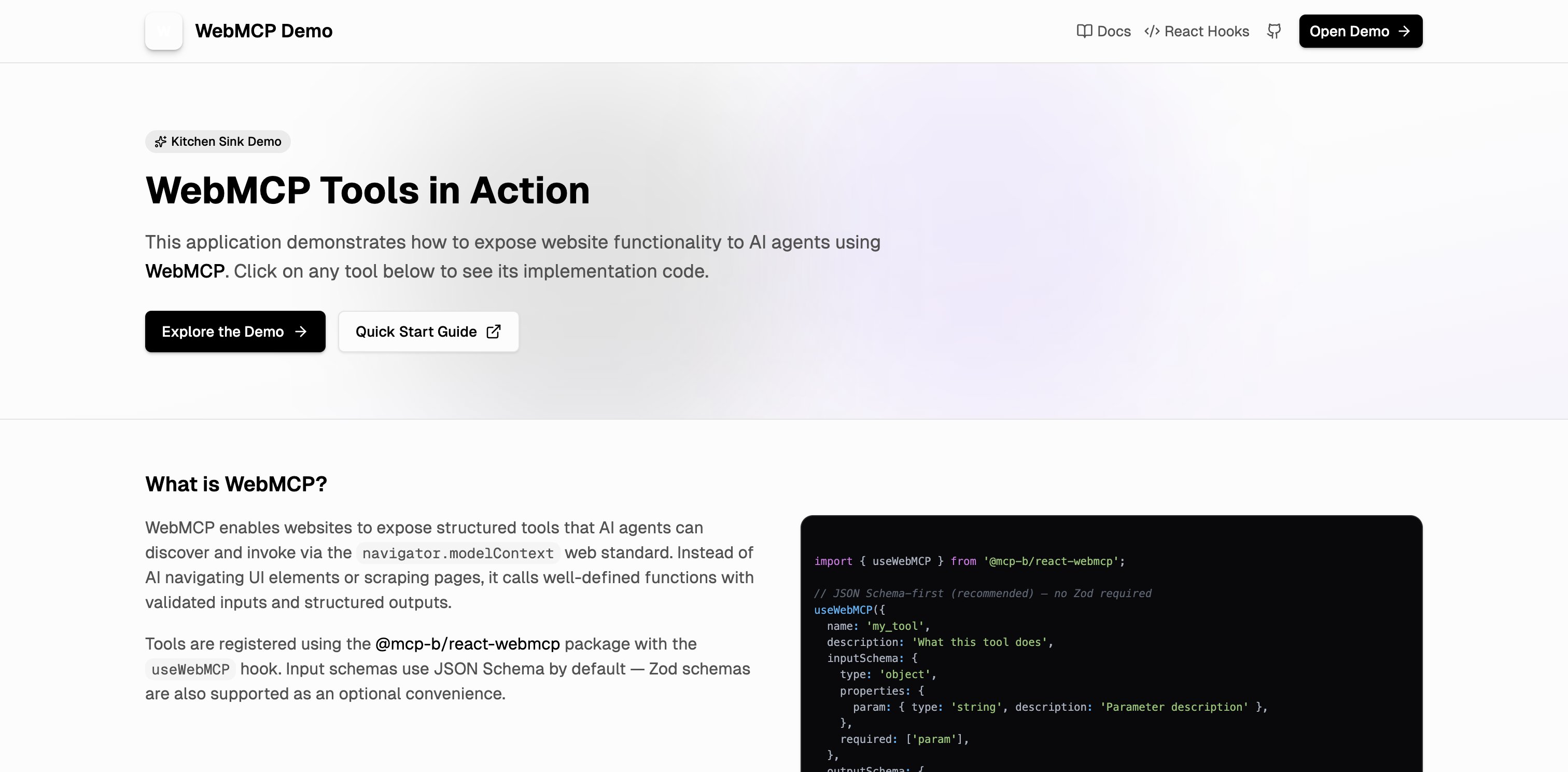
webmcp.sh registers tools for navigation, data management, SQL queries, and more
sql_query tool and returns structured query results from the in-browser database.
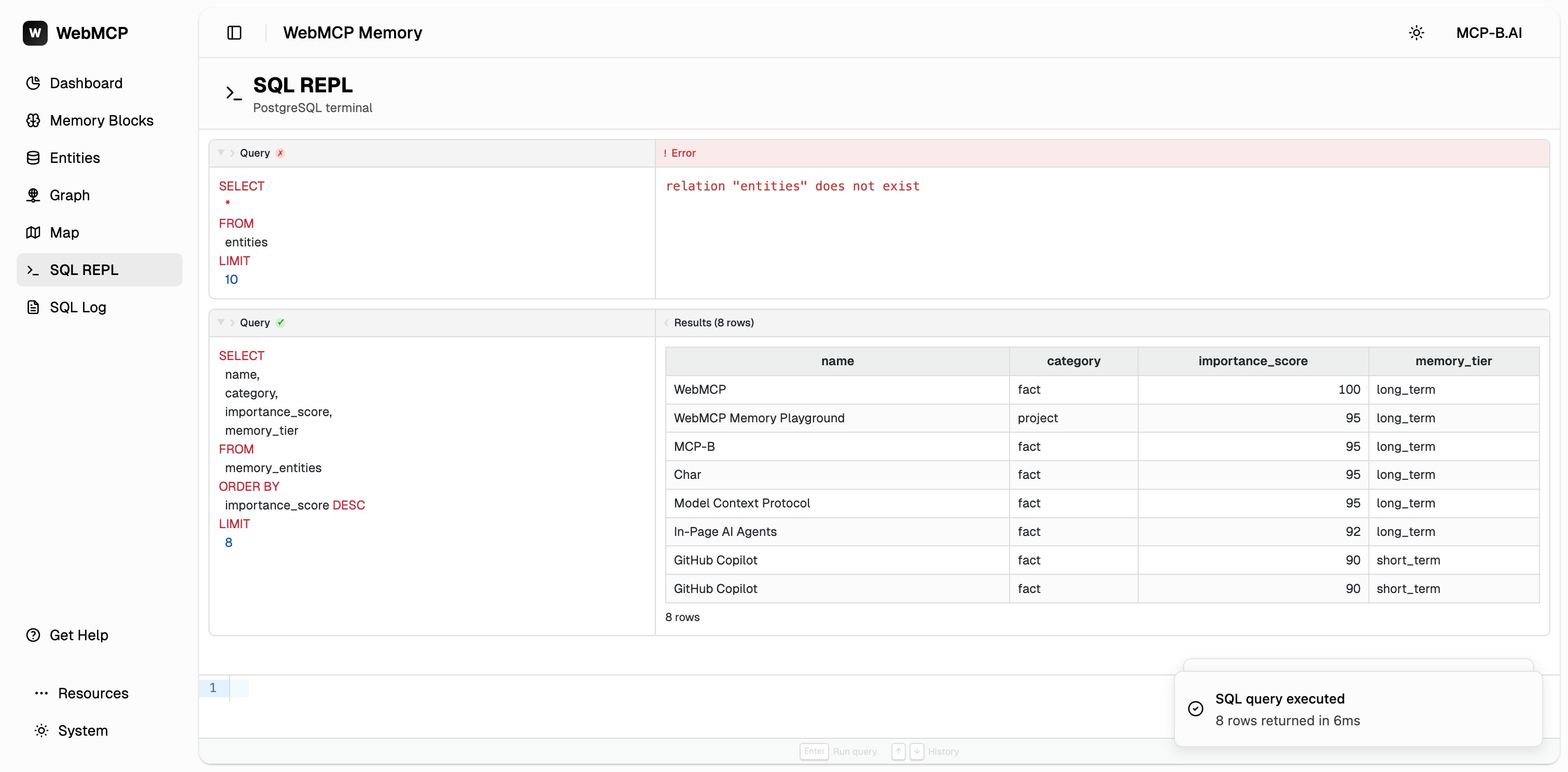
The agent called the sql_query tool to query the in-browser PostgreSQL database
list_webmcp_tools is diff-aware. The first call returns the full tool list. Subsequent calls return only added or removed tools. Pass full: true to force the complete list.Client compatibility for dynamic tool updates
Use the AI-driven development workflow
The most powerful use case is building WebMCP tools with your AI agent in a tight feedback loop. Clone the Chrome DevTools Quickstart for a minimal project with@mcp-b/global pre-installed, or use your own app.
1
Ask your agent to create a tool
2
The agent writes the code in your app
3
Your dev server hot-reloads the change
4
The agent discovers the new tool
5
The agent tests the tool
6
The agent iterates if something fails
The agent sees the actual response, fixes bugs, and repeats until the tool works.
Built-in prompts
The server includes prompts that guide agents through common workflows:
Example:
Connect to an existing Chrome instance
By default, the server launches its own Chrome with a dedicated profile. If you want to use an existing Chrome session (to preserve login state or avoid WebDriver restrictions):Auto-connect (Chrome 144+)
1
Enable remote debugging in Chrome
Navigate to
chrome://inspect/#remote-debugging and follow the dialog to allow debugging connections.2
Use the autoConnect flag (enabled by default)
Manual connection via remote debugging port
1
Configure the MCP server with a browser URL
2
Start Chrome with remote debugging enabled
Common configuration options
Pass options through theargs array in your MCP client config:
For the full list of options, see the chrome-devtools-mcp Reference.
Troubleshoot common issues
Related pages
- chrome-devtools-mcp Reference for the full tool list and all CLI options
- Connect Desktop Agents with the Local Relay for an alternative approach that works with any website
- Debug and Troubleshoot for general debugging strategies